
Perpetual Calendar Page Setup (Quite Imposing)
Perpetual Calendar Page Setup (Quite Imposing)
This is how you can setup a perpetual calendar to print a proof using Quite Imposing.
1. Open the text pdf, no covers included.
2. The PDF needs to be setup so that the first and last page in this PDF are the front and back of the first page in the final calendar.
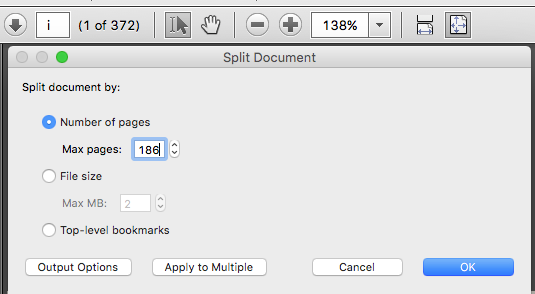
3. Use Acrobat's Split Pages option to create 2 separate files with equal number of pages in each.
4. Close the original PDF. Keep this for redoing if you make a mistake.
5. Open the 2nd of the two PDF's you just created. This PDF should contain the 2nd half of the calendar.
6. OPTIONAL This step needs only be done if the imposition for this size pages on the digital press sheet are positioned with the head of the calendar facing left or right. If the head is towards the top or bottom of the imposed page, it does not need to be rotated. See the image below to understand this. If needed use Acrobat's Rotate Pages tool to rotate all the pages in this document 180 degrees so they are upside down. You can tell by checking the width of the calendar to see if it will fit 2 across on a 12.5 inch wide sheet.
.png)
7. Then use Quite Imposing's 'Reverse Page Order...' action. This will move all the first pages to the back of the PDF.
8. Save this PDF with rotated and reversed pages.
9. Then open both split PDF files. So you should have part1 and part2 open. Part 2 may be rotated 180 degrees.
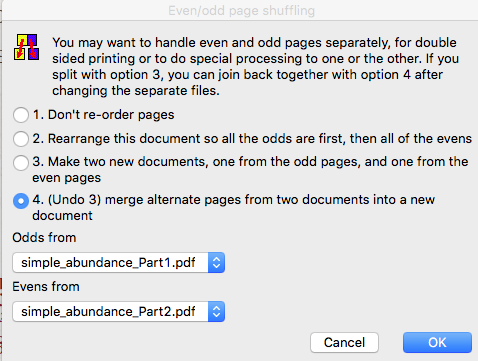
10. Then use Quite Imposing to Suffle Even/Odd Pages. Select option 4 (Undo). This mergest alternate pages from two documents into a new document. Select Odds from Part1 pdf and Evens from Part2. This makes another new pdf that contains all the pages from both PDFs. The odd pages will be from part1 and the even pages from part2.
11. Save this new combined file. (This should have every other page upside down if you rotated in the previous step 6). Make sure you have the proper file to send to Prinergy, I usually name this pdf something very obvious so I don't grab the wrong PDF somehow.
1. Open the text pdf, no covers included.
2. The PDF needs to be setup so that the first and last page in this PDF are the front and back of the first page in the final calendar.
3. Use Acrobat's Split Pages option to create 2 separate files with equal number of pages in each.
4. Close the original PDF. Keep this for redoing if you make a mistake.
5. Open the 2nd of the two PDF's you just created. This PDF should contain the 2nd half of the calendar.
6. OPTIONAL This step needs only be done if the imposition for this size pages on the digital press sheet are positioned with the head of the calendar facing left or right. If the head is towards the top or bottom of the imposed page, it does not need to be rotated. See the image below to understand this. If needed use Acrobat's Rotate Pages tool to rotate all the pages in this document 180 degrees so they are upside down. You can tell by checking the width of the calendar to see if it will fit 2 across on a 12.5 inch wide sheet.
7. Then use Quite Imposing's 'Reverse Page Order...' action. This will move all the first pages to the back of the PDF.
8. Save this PDF with rotated and reversed pages.
9. Then open both split PDF files. So you should have part1 and part2 open. Part 2 may be rotated 180 degrees.
10. Then use Quite Imposing to Suffle Even/Odd Pages. Select option 4 (Undo). This mergest alternate pages from two documents into a new document. Select Odds from Part1 pdf and Evens from Part2. This makes another new pdf that contains all the pages from both PDFs. The odd pages will be from part1 and the even pages from part2.
11. Save this new combined file. (This should have every other page upside down if you rotated in the previous step 6). Make sure you have the proper file to send to Prinergy, I usually name this pdf something very obvious so I don't grab the wrong PDF somehow.